WooCommerce & Online Payments
WooCommerce Mobile App Cannot Open Your Store but Notifications Still Arrive?
Push notifications and mobile store access can fail independently. Trace site discovery, interactive login, application-password authorization and order access, then coordinate a targeted host or plugin correction using the request that actually fails.
In this guide
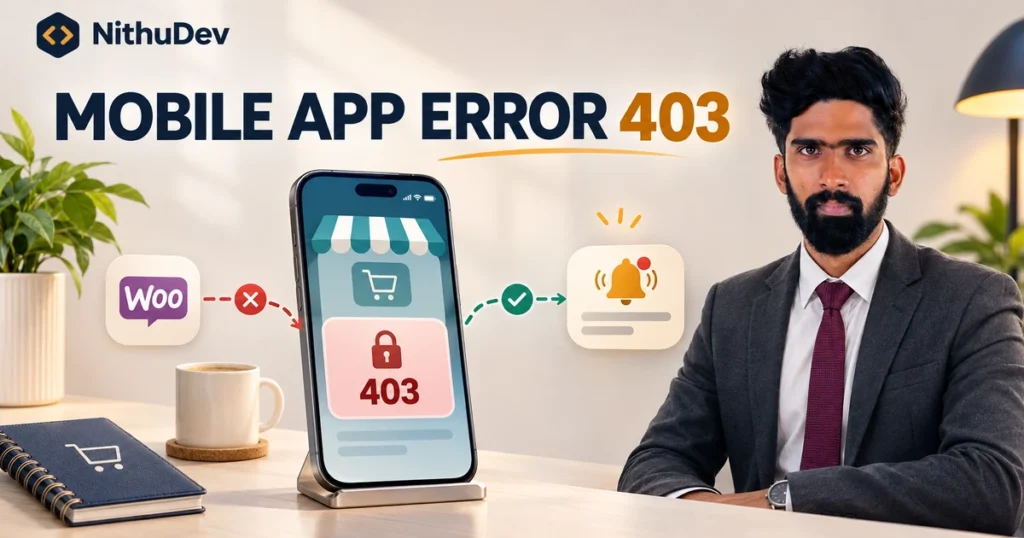
If WooCommerce notifications still arrive but the mobile app cannot open your store, treat notification delivery and authenticated store access as separate checks. Capture the exact failing step and request before changing security settings. A 403 during login, a refusal to create an application password and a failure to load orders are not interchangeable diagnoses.
An owner report about an iPhone app connection illustrates this distinction: notifications continued while login and subsequent authorization requests failed. The owner associated the onset with an update, but the later diagnostics involved several authentication controls. Timing alone did not prove the update caused the problem.
Locate the point at which the app stops
Write down the exact error text and the action immediately before it. Does the app reject the store address, refuse credentials, fail after a browser-based approval or display the store but fail to load orders? Record the app version, installed store components and the time of one controlled attempt.
Try opening the public store in the phone’s browser. An authorized user can also test the normal WordPress login in that browser. These checks help separate general availability and account access from an app-specific connection. Do not assume a successful browser login proves the app has completed every authorization step.
Use the final canonical store address, including HTTPS, rather than an old redirected domain. Note any redirect between www and non-www addresses, since the developer will need to inspect where the authentication session goes.
Understand the access chain without replacing it
WooCommerce’s mobile login troubleshooting documentation distinguishes site detection, interactive login and application-password problems. Follow the route that matches the observed stage. The details of the supported app flow can change, so use the current documentation for the installed setup.
An application password is separate from the main password used to sign in interactively. WordPress documents these revocable credentials in its application-password guide. A security policy can affect their availability or use independently of a person’s ability to enter the dashboard.
Never paste application passwords, authorization headers, login cookies or QR authorization links into a public support thread. Diagnostics should identify the request and decision without publishing the credentials that authorize it.
Ask for evidence from the denied request
The developer and host should correlate one app attempt with access logs, firewall events and relevant application logs. Record the endpoint, status, timestamp and sanitized response. Ask which layer actually generated the refusal rather than assuming a visible firewall is responsible for every 403.
If the login succeeds but application-password creation fails, compare the session and request context between those steps. A developer may need to inspect redirects, cookie handling and the relevant nonce without logging secret values. If a later authenticated API call fails, examine that request’s authentication separately.
The WooCommerce REST API authentication guide is useful for a subsequent data-access failure, although ERP API-key access is a different journey from connecting the mobile app. Do not substitute integration credentials merely to avoid diagnosing app authorization.
Review security compatibility with the responsible maintainer
Inventory the protections actually involved: host login rules, a web application firewall, two-factor authentication, CAPTCHA or Turnstile, a custom login path and restrictions on application passwords. More than one may participate in the same connection.
Ask each vendor for its supported mobile-app configuration. Where a controlled comparison is necessary, use staging when it can represent the app flow, or a brief coordinated maintenance test with a clear rollback. One successful attempt with a control disabled is diagnostic evidence, not a suitable permanent configuration.
Keep two-factor authentication and login protection as part of the intended final setup. If a narrow compatibility rule is needed, scope it to the supported operation after the host or vendor identifies the restriction. Broadly opening the REST API or disabling every firewall creates a new access problem.
Manage credentials only after verifying ownership
Only a verified owner or authorized administrator should change app credentials or account policies. Identify the correct user and existing app credential before revoking anything. Other integrations may depend on separate credentials and should not be interrupted as collateral troubleshooting.
If an incomplete authorization left an app-specific credential behind, follow the documented recovery procedure for that condition. Repeating credential creation without examining the result can create confusion about which connection the device is using. Retire temporary diagnostic credentials after the investigation.
Verify normal work and the security boundary
After the correction, connect through the supported flow and open a representative existing order. Confirm the account has the intended store-management permissions, then reopen the app and repeat the read operation. No live payment is needed to establish that order viewing works.
Check notification delivery separately and record both outcomes. Review the final security configuration with the maintainer, using the WordPress REST permission guide where broader access policy needs attention. The successful outcome is a usable app with deliberate permissions and supported protection.
Frequently asked questions
Do working notifications prove the app is fully connected?
No. A notification path can remain functional while interactive login or authenticated order access fails. Test those operations independently.
Does a 403 prove the firewall blocked the app?
No. Several layers can refuse a request. Correlate the specific endpoint and timestamp with host, security and application evidence before changing a rule.
Should I permanently disable two-factor authentication?
No. Ask for a supported app-compatible configuration and verify the complete flow. Any temporary comparison should be controlled and followed by restoring the intended protections.
Prepared for website owners by Nithu / Suthakaran Nithursan. Dated problem examples link to their original reports and technical guidance. They are not Nithu client cases, proof of prevalence or guarantees.