Practical security advice for website owners
WordPress Two-Factor Authentication: Set It Up Without Losing Access
Security guidance · References checked 2 November 2026
In this guide
A stolen WordPress password should not be enough to give someone control of your business website. Two-factor authentication adds another check to an interactive login, but the rollout matters. A rushed setup can lock out the owner, leave a second administrator unprotected or break a staff workflow that nobody tested.
This guide is for owners of self-hosted WordPress websites. The aim is a working login and recovery process, not simply a dashboard setting marked “enabled”. If you already see unfamiliar administrators, redirects or altered content, treat that as a possible incident first; enabling MFA does not clean an infected website.
Decide which accounts need protection
Start with everyone who can administer the website, install software, edit sensitive settings or manage your hosting. Include the email account used for password recovery, the domain registrar and any identity provider used for single sign-on. A protected WordPress login does not protect a separate hosting control panel.
WordPress describes two-step authentication as combining different authentication factors. Your available options depend on the hosting platform, identity provider or maintained authentication extension. Check its current documentation instead of assuming every WordPress installation has the same settings. WordPress two-step authentication guidance.
Make a small account inventory: the person responsible, their role, login method, recovery owner and whether enrolment has been tested. Use named accounts rather than a shared “admin” login so you can remove one person’s access without disrupting everyone else.
Choose the method and plan for recovery
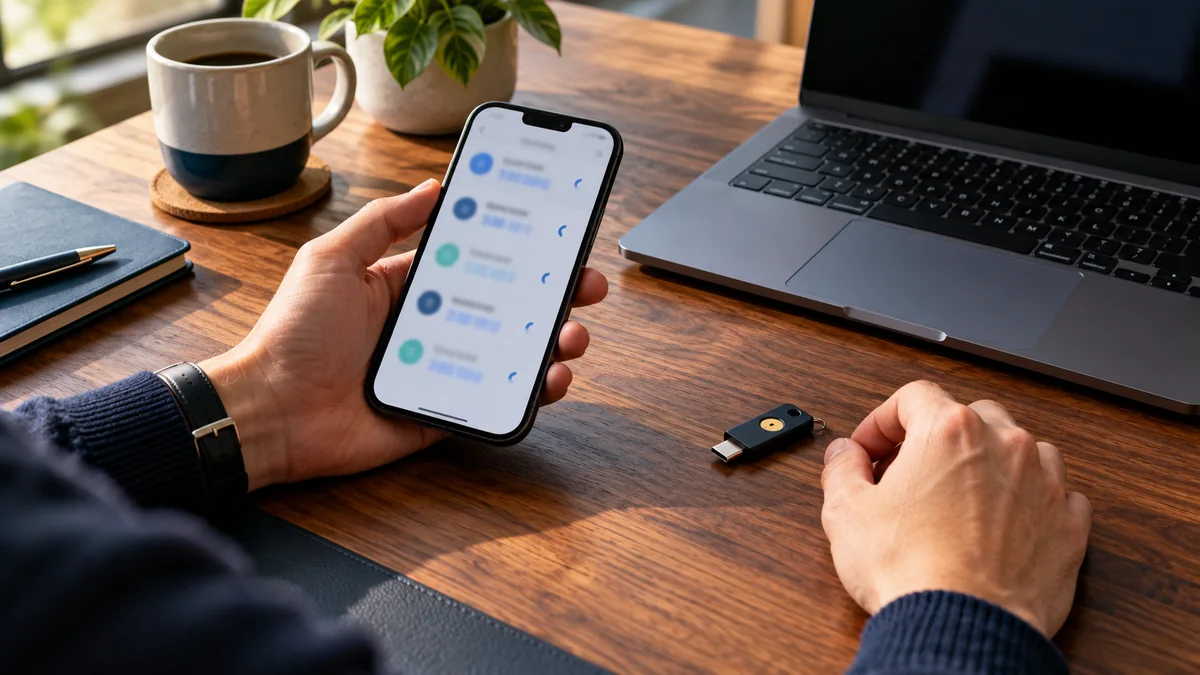
An authenticator app may suit a small team. A supported hardware key or passkey can be appropriate where your chosen login system supports it. Check the actual implementation, browser compatibility and recovery behaviour before deciding. Do not buy a device on the assumption that any plugin will accept it.
Ask three questions before switching enforcement on:
- Can each user register a suitable second factor using equipment they can reliably access?
- What happens if a phone or key is lost, replaced or unavailable?
- Who can approve an account recovery, and how will they verify the request independently?
Recovery codes are sensitive credentials. Keep them in protected storage that remains available if the primary device is lost. Do not leave the only copy on that same phone, in a public screenshot or in the website’s uploads folder. OWASP explains why MFA recovery needs its own threat assessment; a weak recovery route can undermine the stronger login. OWASP MFA guidance.
A business should also document who controls its password manager and how an authorised owner can regain access if a staff member leaves. That is an operational decision to make before an emergency, not during one.
Roll out to one administrator first
Choose a quiet maintenance window and confirm that a current backup and an authorised host-assisted recovery route exist. Review compatibility with your login customisations, security software and single sign-on. Avoid installing several overlapping login-protection systems at once.
Enrol one administrator while keeping the existing authenticated session available. Verify recovery arrangements, then use a separate private browser session to test a fresh login. Keeping a session open is a temporary precaution during testing, not a permanent bypass or a replacement for recovery codes.
Test both a correct and an incorrect second factor. Confirm that the expected account is challenged and that an unsuccessful attempt does not grant access. If the setup has a grace period, record when it ends and what will happen to accounts that have not enrolled.
Only after this pilot works should you enrol the remaining privileged users. Give them short written instructions and a clear contact for recovery help. Record completion for each person; an announcement asking everyone to enable MFA is not evidence that they did.
Test the paths people actually use
A login test should cover more than the main login screen. Check the paths your website uses: a custom login page, a membership login, single sign-on, the WooCommerce account area where relevant, and any administrator reauthentication flow. Some interfaces are managed by different components.
Confirm that accessibility tools and the supported mobile browsers can complete enrolment. If email is part of recovery, check that messages reach the correct mailbox and do not expose secrets to a shared distribution list. Test the documented recovery process with a designated test account rather than resetting a colleague’s access without warning.
For an example small-team rollout, the owner enrols first, a content editor tests normal publishing next, and a second administrator verifies the recovery instructions. The example is a planning pattern, not a report of a client result. Each role should still have only the access its work requires.
Keep API credentials separate from browser logins
An integration may continue working without an interactive MFA prompt. That does not automatically mean MFA is broken. WordPress Application Passwords are separate credentials intended for programmatic access, not for logging into the normal administrator screen. Review them as part of your access inventory. WordPress Application Passwords.
Document each integration’s purpose, account owner and revocation plan. Remove unused credentials through an approved process, and test dependent services after any rotation. Do not paste application passwords into browser JavaScript, analytics events or public support requests.
This distinction matters when somebody leaves the company: removing their second factor alone may leave another credential or hosting login active. The separate developer-access handover guide explains how to close those paths deliberately.
What MFA cannot fix
MFA does not repair a vulnerable plugin, remove a backdoor, secure a compromised administrator’s computer or prove that an existing session is legitimate. It is one layer of an access-control system. Software updates, least privilege, trusted devices and investigation of unusual activity still matter.
If an account looks unfamiliar, follow the unexpected administrator account guide before assuming it belongs to an attacker. Preserve the relevant records and verify with the owner through a trusted channel.
A completion checklist for the owner
You are ready to enforce the chosen policy when every relevant user has enrolled, fresh logins work, recovery has been tested, unused integration credentials have been reviewed and the recovery instructions have an accountable owner. Keep a review date for staff changes and replacement devices.
The useful outcome is confidence that authorised people can get in, unauthorised people face another barrier, and a lost phone will not turn into an improvised security bypass. No MFA setup guarantees that a website cannot be compromised.
Published by NithuDev. About Nithu / Suthakaran Nithursan, website developer and security recovery specialist. Featured artwork is an AI-generated editorial illustration, not a photograph of a client, a real security incident or a verified tool result.