Practical security advice for website owners
Found an Unknown WordPress Admin? Investigate Before Deleting
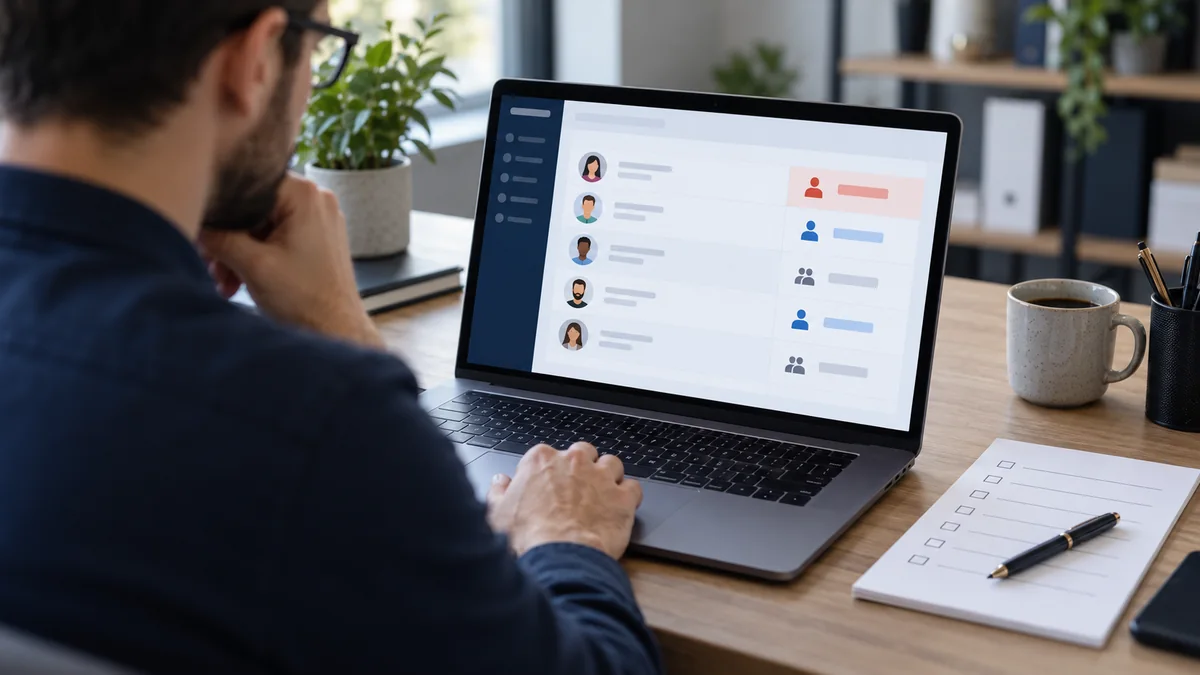
Security guidance · References checked 2 November 2026
In this guide
An administrator you do not recognise deserves attention, but a username alone does not tell you what happened. It could belong to a former developer, a hosting tool, a migration process or someone who gained unauthorised access. Deleting it immediately can remove useful context, disrupt an integration or leave the actual entry point untouched.
Start by protecting the business and preserving enough information to investigate. If there is active harm, containment takes priority; the point is to make a deliberate decision rather than delete first and reconstruct the facts later.
Confirm what you are looking at
Open the user list from a trusted device and record the account’s ID, login name, email address, displayed role and registration time where available. Do not publish those details in a public forum. Check whether this is a single-site installation or Multisite, because network-level privileges require a separate review.
A role is a collection of capabilities, and plugins can change those capabilities. The label “Editor” or “Administrator” is a useful starting point, not a complete permissions audit. WordPress’s roles and capabilities reference explains the distinction.
Ask the owner and current development provider whether the account is expected. Use an established contact channel, not a message sent only to the unfamiliar account’s email address. Record who confirmed ownership and why the access is still needed.
Preserve a short incident record
Create a private note with the time you noticed the account, the site URL, the relevant account details and any symptoms. Include recent software changes, migrations, staff departures or support sessions. Save an appropriate file/database snapshot and available logs before modifying the system where access and hosting conditions permit.
Do not send the whole database to an unverified recipient. It can contain customer records and other sensitive information. Share the minimum necessary material through an agreed protected route, with a clear owner for its storage and deletion.
Your working record should distinguish facts from possibilities. “Account ID 42 has an administrator role” is a fact. “A plugin exploit created it” is a hypothesis until evidence connects those events. This distinction prevents a reasonable investigation from becoming an unsupported accusation.
Use read-only checks where appropriate
A developer with authorised shell access can list administrators using WP-CLI:
wp user list --role=administrator --fields=ID,user_login,roles,user_registered
This is an inspection example, not a cleanup command. Use a trusted WP-CLI environment and the correct installation path. Some commands bootstrap WordPress and may load installed code; on a compromised installation, ask the host or incident responder how to run checks safely rather than executing unfamiliar files. WP-CLI user list documentation.
Keep outputs private and record the scope of the check. A list of administrators does not identify every powerful custom role, hosting user, scheduled task or external integration. It also does not establish when a particular role was granted.
Review sessions and application credentials
Check the account’s available session information and related application credentials. WP-CLI provides commands for inspecting and ending user sessions. The relevant information may help you correlate activity, but an IP address or user-agent string is a lead rather than proof of a person’s identity. Shared networks, proxies and missing history complicate interpretation. WP-CLI user session documentation.
WordPress Application Passwords are separately revocable credentials for integrations. Changing an interactive-login setting is not a substitute for reviewing those records. Check names, owners and available usage metadata, and investigate unexplained entries without copying the secrets into your incident note. Application Passwords handbook.
Also review access outside WordPress: hosting control-panel users, SFTP/SSH accounts, deployment keys, domain access and relevant email accounts. A removed WordPress user can be recreated if someone still controls another route into the installation.
Choose containment without destroying the trail
If ownership is confirmed and the account is legitimate, reduce unnecessary privileges and document its purpose. If it is abandoned, agree a removal plan with the owner, including any content ownership or integration dependencies.
If unauthorised access is likely, preserve the key records first where practical, then have the authorised administrator or responder restrict the access, terminate relevant sessions and revoke affected credentials. The exact sequence depends on ongoing harm and the risk of locking out legitimate recovery access. Do not rely on an improvised role change as universal containment; custom permissions and existing access paths need verification.
When a user must be deleted, review the content-reassignment choices carefully. Posts and other objects may belong to that user. Avoid a bulk-delete command copied from a forum, and verify the resulting content ownership and account state afterwards.
Investigate why the account existed
Removing an unwanted account addresses one symptom. It does not answer how it was created or whether there are other changes. Correlate available activity logs with plugin installations, role changes, file modifications, authentication events and hosting activity. Use the security logging guide to understand what those records can and cannot show.
An example investigation might find that an old contractor created the account during a documented migration. A different case might show an unexplained privileged account alongside altered plugin files. These are different situations and should not receive the same confident diagnosis. Neither example is a claim about a real NithuDev client.
If evidence points to compromise, expand the assessment to the affected code, data and access controls. Do not announce that the site is clean simply because the unfamiliar username has disappeared.
Verify and close the investigation
After the approved changes, check the current user list, actual privileges, relevant sessions and integration access. Confirm that the business owner can still administer the site and that essential scheduled work continues. Record what was changed, what was tested and which evidence remains unavailable.
Watch for the account returning or other unauthorised changes. Recurrence calls for investigation of persistence and entry points, not repeated deletion. The existing WordPress reinfection guide covers that wider problem.
For future prevention, use named accounts, an access register, MFA for relevant interactive logins and a defined offboarding process. If you need help with suspected compromise, share the public URL and symptoms first; administrator passwords should never go into a public enquiry form.
Published by NithuDev. About Nithu / Suthakaran Nithursan, website developer and security recovery specialist. Featured artwork is an AI-generated editorial illustration, not a photograph of a client, a real security incident or a verified tool result.