Practical performance advice for website owners
WordPress PWA Showing Old Content? Investigate Service-Worker Caching
Need hands-on help? Request a Speed Review →
WordPress performance advice · Reviewed 3 November 2026
In this guide
You publish a change, purge the CDN and confirm that the server returns it. An installed web app still shows the old page. If the site uses a service worker, another delivery layer may be involved.
Confirm that a worker is active
Use the browser’s application tools to inspect registrations and the scope controlling the affected page. Identify whether a PWA plugin, custom app or hosting integration owns the worker. A site is not necessarily using this mechanism just because a home-screen shortcut exists.
Compare the ordinary browser route, installed experience and a clean test profile. Record which one is stale and whether requests are served through the worker.
Understand the update lifecycle
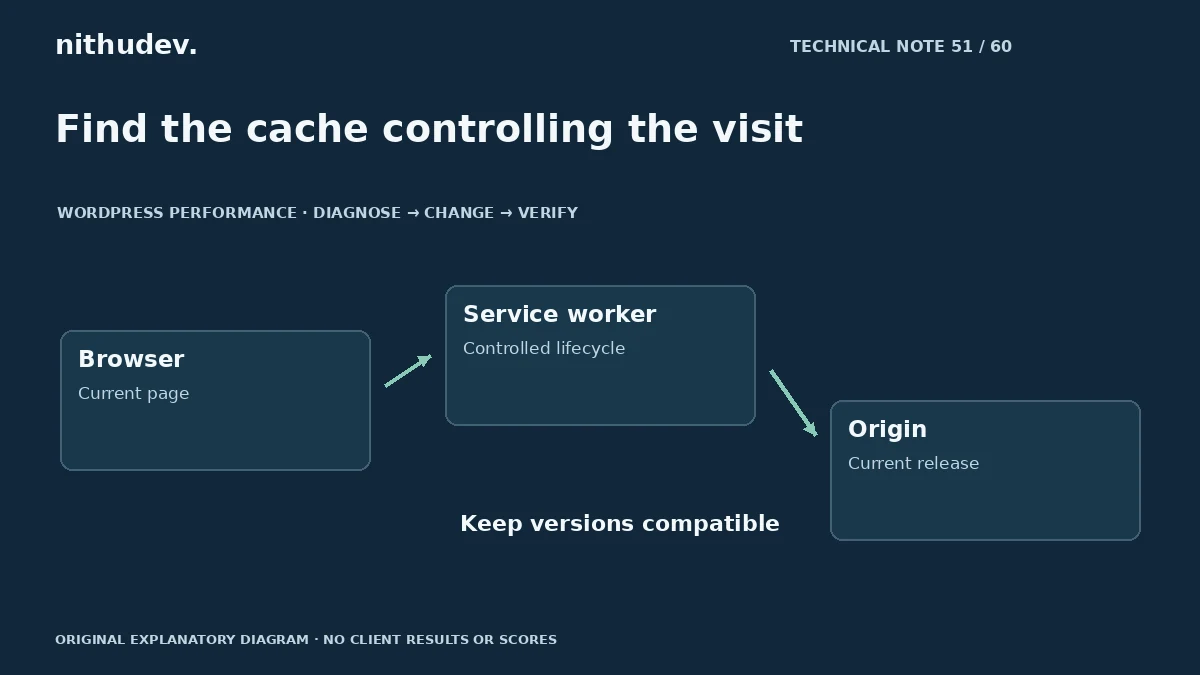
A new worker can install while an older one continues controlling open pages. That lifecycle is designed to coordinate versions. A published file change does not mean every existing tab has immediately switched to it.
Review the implementation’s supported update flow. Forcing activation without considering page and data compatibility can mix versions in ways the application did not expect.
Map the cache strategy
Different resources may follow different strategies: network first, cached response first or a managed refresh pattern. Document which routes and files are included, how cache names change and how obsolete entries are removed.
- Public reading content may have offline value.
- Personalised accounts and private records need appropriate protection.
- Booking availability and payment status require current authoritative handling.
- Assets must stay compatible with the HTML or app version using them.
Do not apply one broad offline policy to every request.
Test updates without losing user work
Use an authorised test profile with representative data. Open the old release, deploy the intended change and follow the supported update process. Test multiple tabs and any offline-to-online transition the app offers.
A blanket storage-clearing script can remove more than stale assets. It may affect saved work, preferences or session-related data. Do not send it to all visitors as a generic troubleshooting shortcut.
Coordinate the other layers
Check whether the worker script itself or its resources are being served through outdated origin or edge responses. Align the server release, asset versioning and worker update strategy. Record which layer owns each part.
Use supported plugin or app extension points. Manually editing generated worker files may be overwritten or leave the build and runtime out of sync.
Verify the customer journey
Confirm fresh content, ordinary navigation, forms and relevant purchasing or booking actions after the update. Ensure an offline screen does not claim that an enquiry or payment completed when the server has not accepted it.
A PWA cache review can be a custom integration task beyond routine WordPress page tuning. Define the affected routes, supported offline behaviour and testing scope before work begins.
Work directly with Nithu
Get help with your WordPress performance
If an installed web app keeps showing old content, I can trace the controlling worker and update flow before recommending a safe cache or deployment change.
Request a Speed ReviewCompare the $79, $179 and $349 one-time packages →
No payment is needed for an enquiry. Scope is confirmed before work; paid tools, hosting and out-of-scope development are separate unless agreed. No fixed score or ranking guarantee.
Technical references
Written for website owners planning performance work. Technical options depend on the installed versions, hosting and integrations. Test changes safely and retain a recovery path. The featured diagram is an original editorial illustration, not a measured result or customer case study.