Practical performance advice for website owners
Slow WordPress Dashboard? Diagnose Admin Delays Separately From Public Pages
Need hands-on help? Request a Speed Review →
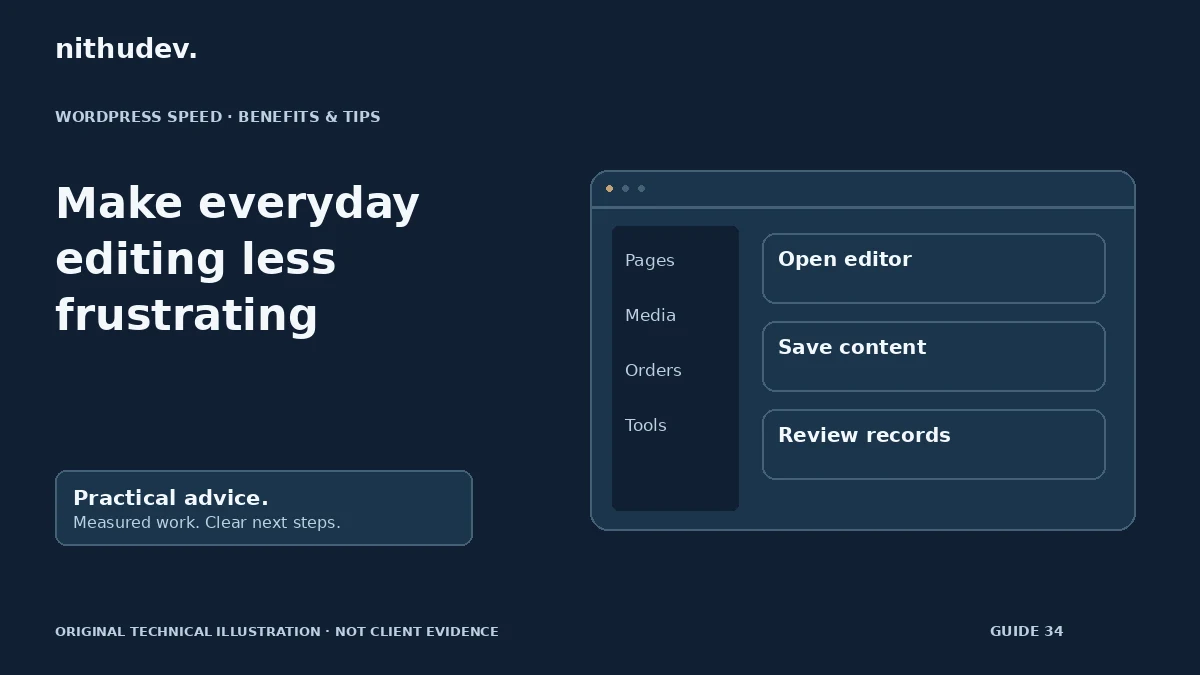
WordPress performance advice · Reviewed 3 November 2026
In this guide
The public homepage feels quick, but saving a page or opening orders takes too long. Staff lose time waiting, and routine maintenance becomes harder. This is an administrative performance problem; a public homepage Lighthouse test will not explain it by itself.
Record the exact slow action
Distinguish login, dashboard loading, opening the editor, saving content, searching orders and running an export. Record the account role, browser, time and whether other users see the same issue.
Test without unnecessary browser extensions in a controlled session. Keep the same action and content for comparisons. Avoid concluding that the server is overloaded from one unusually slow save.
Inspect the request and relevant logs
Use the browser Network panel to identify the delayed request and its response. A failed permission check, blocked API request or JavaScript error needs different attention from a successful but expensive backend operation.
Server-side investigation may include PHP errors, database work, external calls and resource limits. Enable diagnostic logging only with appropriate access and protection. Do not display private errors or customer information publicly to make troubleshooting easier.
Review admin-specific extensions
Dashboard widgets, analytics panels, security scans, backups and reporting tools can add work that does not affect a cached public page. Check what runs on the slow screen and whether it needs to initialize there.
Use staging or a supported troubleshooting method to isolate a component. Do not deactivate order, booking or security functionality on the live site without understanding the operational effect.
Check background workload
A large import, backup or queue of scheduled actions may compete for resources. Review timing and failures with the responsible provider. A scheduled job that repeatedly retries can need a root-cause fix rather than more frequent execution.
- Record which process is running and why.
- Check for repeated failures or unexpected volume.
- Coordinate heavy work with the host and business schedule.
- Retain required order and operational tasks.
Never delete all scheduled actions as a generic speed fix. Some may send notifications, handle subscriptions or complete important maintenance.
Do not share-cache administration
Authenticated screens and private responses need appropriate handling. A shared cache is not an acceptable shortcut for making them appear faster. Keep account permissions, nonces and access controls intact.
If persistent object caching or a hosting change is considered, confirm actual support and measure the relevant workload. Those changes require their own compatibility and update checks.
Define a useful completion test
Repeat the original staff tasks using the appropriate roles. Confirm saves persist correctly and that reports or exports contain the expected records. Check that diagnostic settings have been returned to the agreed state and sensitive logs remain protected.
A quote should distinguish routine public-page optimization from deeper admin or application investigation. Describe the operational task when asking for help so the scope matches the problem.
Work directly with Nithu
Get help with your WordPress performance
Tell me which admin screen or action is slow. I can investigate that workload separately from the public website and recommend an appropriate scope.
Request a Speed ReviewCompare the $79, $179 and $349 one-time packages →
No payment is needed for an enquiry. Scope is confirmed before work; paid tools, hosting and out-of-scope development are separate unless agreed. No fixed score or ranking guarantee.
Technical references
Written for website owners planning performance work. Technical options depend on the installed versions, hosting and integrations. Test changes safely and retain a recovery path. The featured diagram is an original editorial illustration, not a measured result or customer case study.